Feed on
Posts
Comments

Ever wonder how to make your presentations accessible to those who are deaf or hard-of-hearing? Check out the quick tips below! 

Microsoft PPT

  • Live Subtitles: Go to Slide Show Tab – Always Use Subtitles
  • Choose the language
  • Make sure to allow the use of a microphone
  • Enjoy the live demo video to see how to turn it on and use subtitles.

Google Slides

  • Live Closed Captions: Present (in Presenter View) – Click on the Captions icon in the toolbar
  • Make sure you have a built-in microphone or an external microphone
  • Check out this great video on how to use Google Slides live closed captions

Need more info? Reach out to MDTAP at MDTAP.General@maryland.gov

Contributed by Stephen Polacek, IT Accessibility Evaluator, MDOD/AT Program

A friend at the National Federation of the Blind informed me of this: two weeks ago, Zoom provided an accessibility update that added new features for screen readers.  It allows users to select which alerts it reads aloud.  The options provided are:

  1. IM Chat Received
  2. Participant has left/joined the meeting (only Host hears)
  3. Participant has left/joined waiting room (only host hears)
  4. Audio muted by host
  5. Video stopped by host
  6. Screen sharing started/stopped by participant
  7. Recording permission granted/revoked
  8. Public in-meeting chat received
  9. Private in-meeting chat received
  10. In-meeting file upload completed
  11. Closed captioning is available
  12. Closed captioning typing privilege is granted/revoked
  13. Host privilege is granted/revoked
  14. Co-host privilege is granted/revoked
  15. Livestream has started/stopped
  16. Participant has raised/lowered hand (only host hears)
  17. Q&A question received
  18. Q&A Answer received
  19. Role changed to panelist
  20. Role changed to attendee

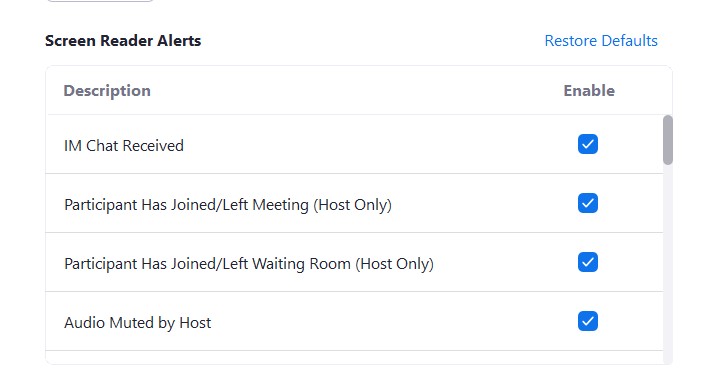
The new alerts can be turned on or off individually from the Accessibility Menu, located in the settings menu when in a meeting.  The picture below shows the start of the list.

Zoom Screen Reader Alerts List

Zoom Screen Reader Alert List Options

I gave it a quick test and they seem to work pretty well.  I would caution that it will likely become problematic in large webinars or classes though, as the messages being read may interfere with actually hearing the presenters.  Thankfully, since each individual option can be selected or not, this can be tailored to your experience. 

Zoom states they test their product using keyboard-only access and also use the latest screen readers.  Their products are “compliant, with exceptions, with the following standards,” which include WCAG 2.1 and Section 508.  See their accessibility page for more information: https://zoom.us/accessibility.

Join Wheel Pad for their first webinar, bringing caregiving experts to the table to answer questions about best practices for caregiving.

Wednesday, February 10 at 6:30

Register here: https://www.wheelpad.com/caregiverwebinar

Many times when people first reach out to Wheel Pad it is after an accident and they are seeking to make their home universally accessible for a loved one in need. There are a multitude of questions people have about caregiving at the start of the process. How will being a caregiver change my routine? How do we best communicate the level of care needed day-to-day? How do we split up household costs? What kind of existing relationship do I have with that person, and how will it change? Our experts will introduce themselves and provide information about these questions. Their presentations will be followed by open floor questions from all attendees.

Contributed by James Whitney, AT Clinician, MDTAP

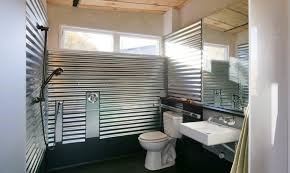
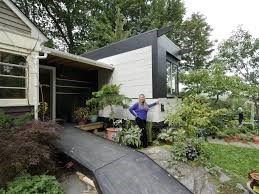
Today’s topic is an exciting one. After meeting with RJ Adler from Wheelpad and learning more about their company and the service they provide we wanted to share this information with you! So what is Wheelpad? Wheelpad is a company that will provide an ADA compliant, wheelchair / handicapped friendly living space brought to your home. How does this work? This is a portable living space that can be set up and attached to a “host house” to add an additional living quarter to a home for a loved one to occupy without having to build it from the ground up. This can be a short-term lease for up to 3 years or you can purchase the Wheelpad with the option to sell it back to the company at a later day when you no longer need this attachment. Wheelpad is designed so that the structure can remain permanently on the wheels used for delivery. With additional jack bracing, an optional deck can be constructed for aesthetic purposes. Insulated electricity and plumbing mimics those used in RV systems. These structures are customizable so that you can make it your own! One of my personal favorite parts of the Wheelpad is that the bathroom is a full “wet room” with non-slip flooring. This means that you can use the bathroom in any way you like to shower and it doesn’t matter what gets wet because it is all meant to handle moisture and drain in a safe way. This comes with non-slip flooring that covers the entire bathroom for safety.

From their website: “Our goal is to respectfully and supportively provide transitional housing for Veterans, those who have experienced a spinal cord injury, those with debilitating illnesses such as ALS or MS, those who want to age in place, and others newly needing accessible living accommodations in a socially conscious and environmentally friendly way.”

If you would like to find out more information about Wheelpad and see if this is a good fit for you go to their website https://www.wheelpad.com/ and you can contact them here Contact Wheelpad.

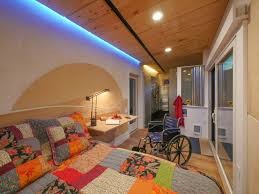
This is a photograph of a wheelpad bedroom. This photograph exhibits a room with a bed, a nightstand, and a wheelchair positioned by the bed and nightstand. The bed has a colorful quilt on it with squares of purple, green, blue, and orange. The ceiling has circular lights that go down length of the room. This is a photograph of the bathroom that a wheelpad would have. The entire bathroom is a "wet room" that can be used in any way to shower without worrying about a drain. the floor is all black and a non-stick material. The walls have a silver metallic substance that looks like aluminum. The picture shows a shower area, toilet, and floating sink that are all ADA compliant and wheelchair friendly. This photograph portrays a woman in a blue/purple sweater standing outside of the wheelpad. This wheelpad is attached to a host house with a connecting walkway built into the side of the wheelpad. This shows a black ramp that is built up to enter the connecting strcuture. There are trees and plants all outside of the wheelpad and the host house. This is a photograph of a digital design of wheelpad attached to a digital house. This shows the dimensions of wheelpad when it is attached to a two story home. The wheelpad is attached to the front of the digital house and is brown while the digital house i a white/grey color. The wheelpad has flowers and handrails that surround the ramp that leads up to it.

Hey everyone,

Today I wanted to discuss a simple way to potentially improve an individual’s ability to participate in online learning, day programs, or any type of activity that has now become virtual. This first came up when consulting with one of our clients, whom reached out on behalf of one of her students. She stated that her student was having an issue participating with online schooling due to the size of their iPad being too small. We were considering the option of purchasing a larger laptop or desktop, but this can be an expensive fix … and that’s when the idea came to me of using an HDMI cord to plug in their iPad to the TV so that they could project what their iPad was showing to the TV. Apple products do not typically come with an HDMI port so for this specific instance I suggested a lightning cord to HDMI adapter (I will explain more below).
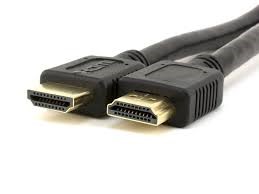
HDMI cable

Pictured to the left: This is your basic HDMI cord that most TV’s have a port (or slot) for. This can plug into a number of things like cable boxes, Firesticks, Roku’s, or Laptops, CPUs, and iPads! Most PC’s will have this jack already built into the side, like a USB port would be. However, most Apple products do not have this port built into it so I will show the available adapters to make this possible.

Thunderbolt port

The new MacBook Pro laptops are built with the HDMI port so this would not apply to those newer models. The older Mac’s don’t have this but they do have a “thunderbolt” port which can be used with a thunderbolt to HDMI adapter (pictured to the right). With this you would still need the HDMI cord to connect the TV to the adapter, and then plug the adapter thunderbolt end into the laptop. Once you set the source on your TV to the correct setting (HDMI 1 or HDMI 2) then you should see whatever is appearing on your laptop.

Lightning cord

For iPhones and iPads that only have the charging port (which use a lightning cord) would follow a process with an adapter just like the one above but this time you would use a lightning cord to HDMI adapter (pictured left).

With the use of the HDMI cord and these different adapters, this will allow you to project whatever is on these screens to a larger television so that you can see loved ones, school lessons, professors, or whatever it is you would like to see on a larger screen! If you have any questions regarding this post or if you are unsure of how to go about doing this don’t hesitate to reach out to me at james.whitney1@maryland.gov !
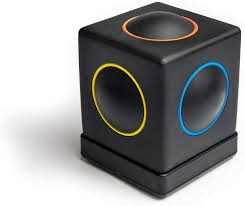
Skoog 2.0

Contributed by James Whitney, OT, AT Clinician, MDTAP

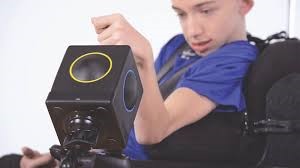
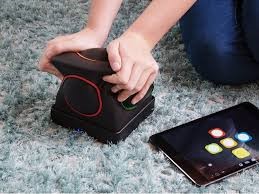
Hey everyone! I wanted to introduce one of our latest AT devices: The Skoog! A musical switch device. As a musician myself I think this device is amazing for enabling individuals of all shapes, sizes, and abilities to be able to create music by hitting the buttons on the Skoog cube. This device works with iTunes, Spotify, GarageBand, and iOS devices. Once you have the app downloaded and you calibrate your Skoog buttons you are ready to produce music! Each button on the Skoog cube will create a different sound which can be personalized to make your Skoog sound the way YOU want it to! This device is suitable for (including but not limited to): children in their early years, individuals with autism, physical disabilities, cerebral palsy, sensory impairments, learning disabilities, down syndrome, and more. If you would like to learn more about the Skoog and different ways to enable an individual to express themselves musically do not hesitate to reach out to our program to find out more! You can email me at Jwhitney@mdtap.org to find out more information and to trail this device for up to 30 days.

Skoog 2.0 in use

« Newer Posts - Older Posts »

MDTAP | 2301 Argonne Drive, Room T17 Baltimore, Maryland 21218| Voice: 410-554-9230 Toll Free ⁄ Voice 1-800-832-4827|Email: mdtap@mdtap.org