Feed on
Posts
Comments

What is AEM?

Accessible Education Materials (AEM) are materials and technologies usable for learning across the widest range of individual variability, regardless of format or features. Whether a material or technology is designed from the start to be accessible for all learners or is made accessible for learners with disabilities, it is considered AEM.  AEM are print- and technology-based educational materials, including printed and electronic textbooks that are designed or enhanced in a way that makes them usable across the widest range of learner variability, regardless of format.  AEM are the materials that work with Accessible Technology to make learning possible! 

Did you know there is a National Center for Accessible Education Materials?  There is!  Check out their website: AEM  They have information for supporting students, creating AEM and more on this informative site.  It’s worth a few minutes to explore.  

National Center on Accessible Education Materials logo

One great resource on the site is the brief on AEM, Technology and IEPs.  You can link directly to it HERE

Good questions to ask as you get started thinking about AEM for students with IEPs:

  • Is printed text a barrier for the
    student?
  • Does the student have difficulty
    using technology-based materials?
  • Does the student need AT to access
    specialized formats of print-based
    and/or technology-based materials?
Google Live Transcribe for Android phones

close up of Android phone with Google homepage on screen.

On Monday, Google announced Live Transcribe, a free Android service that makes real-world conversations more accessible.  Powered by Google Cloud, Live Transcribe captions conversations in real-time.  You can launch it with a single tap from within any app, directly from the accessibility icon on the system tray. 

Live Transcribe is designed for conversational speech, so you don’t use punctuation commands.  You simply speak conversationally.  Punctuation is automatically added, including when you speak a word or phrase that indicates that you might be asking a question, a question mark is added immediately.  Brilliant!!  Google partnered with Gallaudet University to enhance end user experience. 

Read Google’s press release on the Google AI Blog:  https://ai.googleblog.com/2019/02/real-time-continuous-transcription-with.html


The Kennedy Krieger Institute is Using Robotic Exoskeletons to Help People Regain Mobility

By: Joel Hosner, MDTAP Advisory Council Consumer Representative

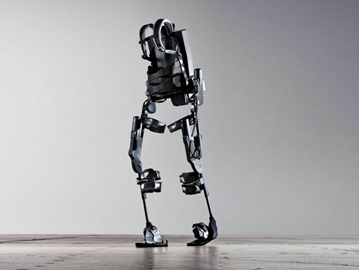
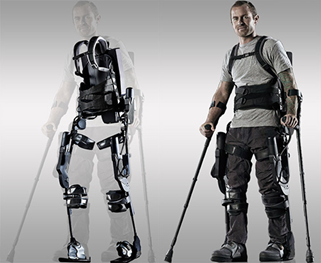
Spinal cord injuries can result in the long-term loss of mobility. According to the Center for Spinal Cord Injury at Kennedy Krieger in Baltimore, recovering some degree of sensation, movement, and independence is possible with the right therapies and supports. One of the forms of support at Kennedy Krieger comes directly from a robot! Kennedy Krieger is using a robotic exoskeleton developed by Ekso Bionics that literally helps patients with spinal cord injuries get back on their feet without human assistance in a clinical setting.

Picture of Exoskeleton brace for two legs

Exoskeleton

Picture of empty exoskeleton brace and man standing in exoskeleton brace.

Man in Exoskeleton

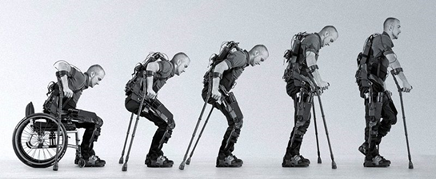
Once patients with spinal cord injuries are upright, they can re-learn step patterns and weight shifting, which is required for stable walking. Patients can sometimes make progress by getting moving early on in their recovery.Series of pictures from man sitting in wheelchair to gradually standing in exoskeleton brace.

To learn more about the Center for Spinal Cord Injury at Kennedy Krieger in Baltimore, go to https://www.kennedykrieger.org/patient-care/centers-and-programs/international-center-for-spinal-cord-injury, or call 888-923-9222 to make an appointment.

An Affordable Way to Summon for Help in an Emergency Using Voice Commands

By: Joel Hosner, MDTAP Advisory Council Consumer Representative

There is nothing like the peace of mind in knowing that if help is needed in an emergency, it’s just a phone call away. For some people with disabilities, it can be challenging to make that phone call quickly. An affordable service, called Noonlight, allows a user to summon help in an emergency through a simple voice command to an Amazon Alexa or Google Home device! Noonlight dispatchers immediately follow up on alerts with a phone call and a text message. If the person is in danger or cannot be reached, Noonlight notifies a 911 operator to send help to the user’s location. Amazon Alexa and Google Home compatibility is available through Noonlight Premium, which is only $4.99 per month.

red box with white 911 and picture of phone

Call 911 using your voice device


Noonlight is perfect for people with unique medical needs because users can provide details about their condition to Noonlight in advance of an emergency. That information could then be provided to a 911 operator when it is needed, eliminating the need for the user to communicate their medical history or location during a crisis.

Black screen with purple button in center saying "Hold until safe"

Screen shot of Noonlight app

Noonlight also has a free iPhone and Android app, available to anyone, which is a virtual panic button that can summon emergency help to the location of the device. Even if the user cannot, or does not speak, help will still be on the way.


You can find out more about Noonlight by going to their website: noonlight.com. The Noonlight app can be downloaded on Apple’s App Store or Google Play.


Using Technology, People Who are Deaf Can Make Phone Calls Without an Intermediary!

By: Joel Hosner, MDTAP Advisory Council Consumer Representative

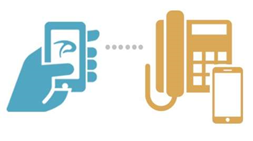
animated image of hand holding phone with connecting line to land line phone

Text-to-Phone

The Telecommunications Relay Service (TRS) provides free access to telecommunications to the deaf community by simply dialing 711. The TRS is operated by human intermediaries that transcribe text that can be read by a person with a hearing impairment via a text telephone (TTY). Pedius provides a similar service using no human intermediary and works on a standard computer, laptop, iPhone, iPad, iPod touch, Android phone, or tablet with no special equipment!

When a user makes a phone call to someone with typical hearing through Pedius, their text message is read out loud through the phone to the other party. When the person responds using their voice, their response is transcribed into text so a user with a hearing impairment can read the message. If the user prefers, they can read incoming messages through text, and respond directly with their voice.

animated image of hand holding a cell phone with Pedius logo on it.

Pedius App

The Pedius app provides 20 free minutes of calling per month, and users can get unlimited calling for $30.00 per year. Alternatively, minutes can be purchased in increments of 100 for $5.00. To learn more, go to Pedius.org. To download the free app, go Apple’s App Store or Google Play and search for Pedius.

Get Access to 680,000+ Accessible Digital Books & Resources at a Low, or No Cost!

Bookshare logo semicircle of blue and orange pages flipping on a book

Bookshare A Benetech Initiative

By: Joel Hosner, MDTAP Advisory Council Consumer Representative

For many people with reading, visual, and physical disabilities, reading from printed books can be challenging. Fortunately, there are other ways to access textbooks, children’s books, and even the books on the current bestseller list. Bookshare is a nonprofit, online library, serving only people with reading barriers. When books are provided in a digital format, texts can be enlarged, read aloud through text-to-speech, or translated into Braille. Bookshare books can be accessed on many different devices, including desktop computers, laptops, tablets, Chromebooks, smartphones, and refreshable Braille displays.   

Students can get a Bookshare account for free, while other individuals with disabilities can get unlimited access to Bookshare for only $50 per year. Teachers can assign accessible versions of books that they are using in class to qualifying students through a Bookshare account created for their school.

To sign up for Bookshare, go to Bookshare.org, and click on “Get Started.” From there, individual and school accounts can be set up. If you have any questions about Bookshare, go to Bookshare.org, and click on “Help Center,” or you may email Joel Hosner, an MDTAP Advisory Council Consumer Representative, at jhosner1@jhu.edu.

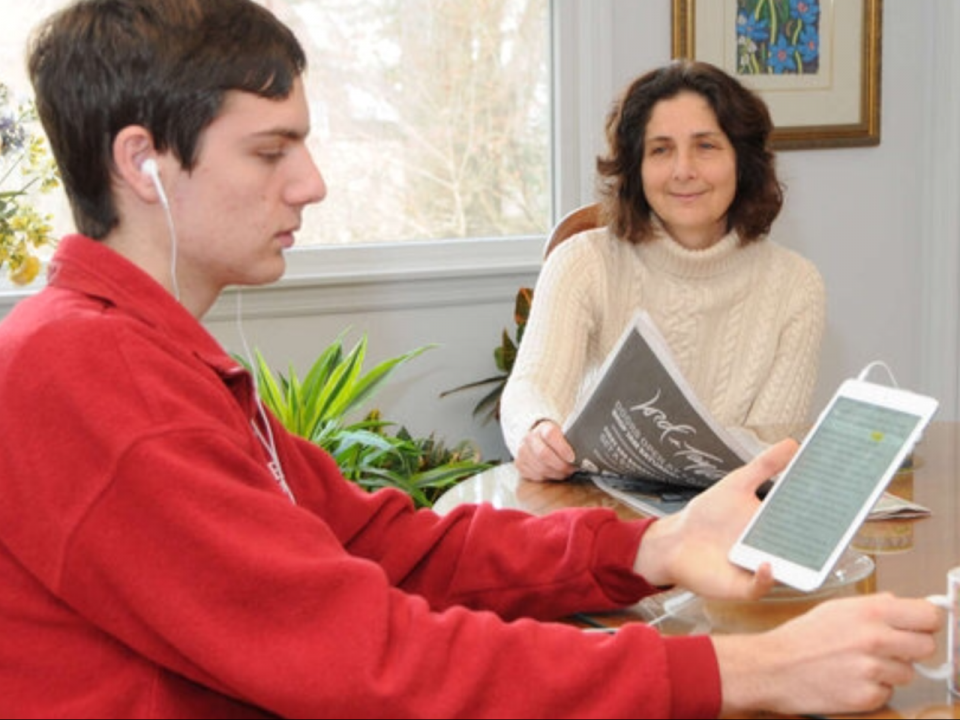
Woman holds newspaper looking at younger man hold an ereader with headphones

Enjoy reading in many different ways

« Newer Posts - Older Posts »

MDTAP | 2301 Argonne Drive, Room T17 Baltimore, Maryland 21218| Voice: 410-554-9230 Toll Free ⁄ Voice 1-800-832-4827|Email: mdtap@mdtap.org