Feed on
Posts
Comments

MAY IS NATIONAL MOBILITY AWARENESS MONTH: The National Mobility Equipment Dealers Association (NMEDA) is celebrating National Mobility Awareness Month. NMEDA is accepting entries from wheelchair users and caregivers in the form of a story explaining your life and perseverance. 4 of the people who enter will receive a FREE wheelchair van!!! Here are the four categories of entry: Caregivers, Seniors (60+), Battery Powered (in-town driving only), and General Entries. The sooner you enter, the sooner you start racking up voting points! Every individual IP address can vote one time per DAY. To enter or to vote for an entry visit: http://www.mobilityawarenessmonth.com

Contributed by Jim McCarthy, Executive Director, MDTAP

Here in Maryland, I’ve found myself recently thinking about access to technology and information for state workers as the state moves to a new IT platform. Maryland’s Division of Information Technology, DoIT, is leading a move of state agencies to Google Apps. A recent meet up of state agencies and Google reps occurred to discuss the move, share ideas and learn some of what might be possible using Google Apps. I found the options to improve collaboration among workers using these apps in a variety of configurations quite compelling in helping me understand the interest DoIT has in moving state agencies to this new platform.

When this effort first began, blind and other disabled users largely lacked access to Google Apps, a concern expressed to DoIT. Nevertheless, DoIT moved ahead with the changes. As the state has moved toward greater implementation of Google Apps, Google has made considerable progress in improving the accessibility of many of these. Following the meet-up, I chose to explore use of the Google Apps, something up to that point I had avoided as it seemed unnecessary for me. Though access certainly has increased, there will be a considerable challenge for people with disabilities to learn the use of these apps. Using Google’s word processing app, for example, is much different for a screen reader user than using Microsoft Word, the word processing program much more familiar to blind users. This will require reliance on help files and searching answers to questions as they arise. I believe there is a lack of knowledge among the assistive technology trainers in our state relating to the functioning of these Google Apps, a scarcity we must resolve over time.

As the state continues with this transition, I’ll continue to provide feedback on accessibility and support where I can.  


It’s all about the feels this week. Like, you can feel your heart explode while watching a video of a pregnant, blind mom-to-be when she gets a 3D sonogram of her son, or you can feel your mind bending when holograms of people with disabilities appear when you park in a handicapped space…so go for it. Dig in. It’s a big, amazing world with so much good happening. AT in the news for the week of 5/4 thru 5/8.

Diagnosed with Dyspraxia in childhood, this young coder builds My Child app to help parents

The unique technology bringing horse riding therapy to the disabled

Cardtronics Establishes Accessibility Center of Excellence

Apple Wants Blind People To Buy Apple Watches

High-Tech Sensors Help Kids Keep Eye on Aging Parents

The Smartphone In Your Pocket Could Help Treat River Blindness For Millions

Welcome to the future: This 3D printer uses living cells to print human tissue

The American Foundation for the Blind Creates an Accessible Video Player

 [Video] Blind Mom-to-Be Meets Her Unborn Baby Via a 3D-Printed Ultrasound

Googler Announces the Color Enhancer Chrome Extension to help improve color perception while browsing

Apple’s Accessibility Features Help Bring Gaming to the Blind on iOS

New Disability Liaison On Board At White House

Beyond apps, Innovate for Good

People with speech disabilities, their advocates relieved by proposed policy

Use accessibility features on your Apple Watch  

People With Disabilities Can Play Piano Thanks to Eye-Tracking in Virtual Reality

People with vision impairments now rely on apps and gadgets daily

Grippable keyboard “stands up” for healthcare industry at HIMSS15

In This Mall, Holograms Of Disabled People Appear If You Try To Park In Their Space

Paralysed artist creates artwork using just her eyes

Accessibility in Linux is good (but could be much better)


Contributed by Jim McCarthy, Executive Director, MDTAP

Recently, MDTAP received our long awaited VarioUltra 20 cell refreshable braille display among the newest additions to our demonstration and loan library. I promptly took control of it to learn how it works so I’ll share some thoughts about it now.

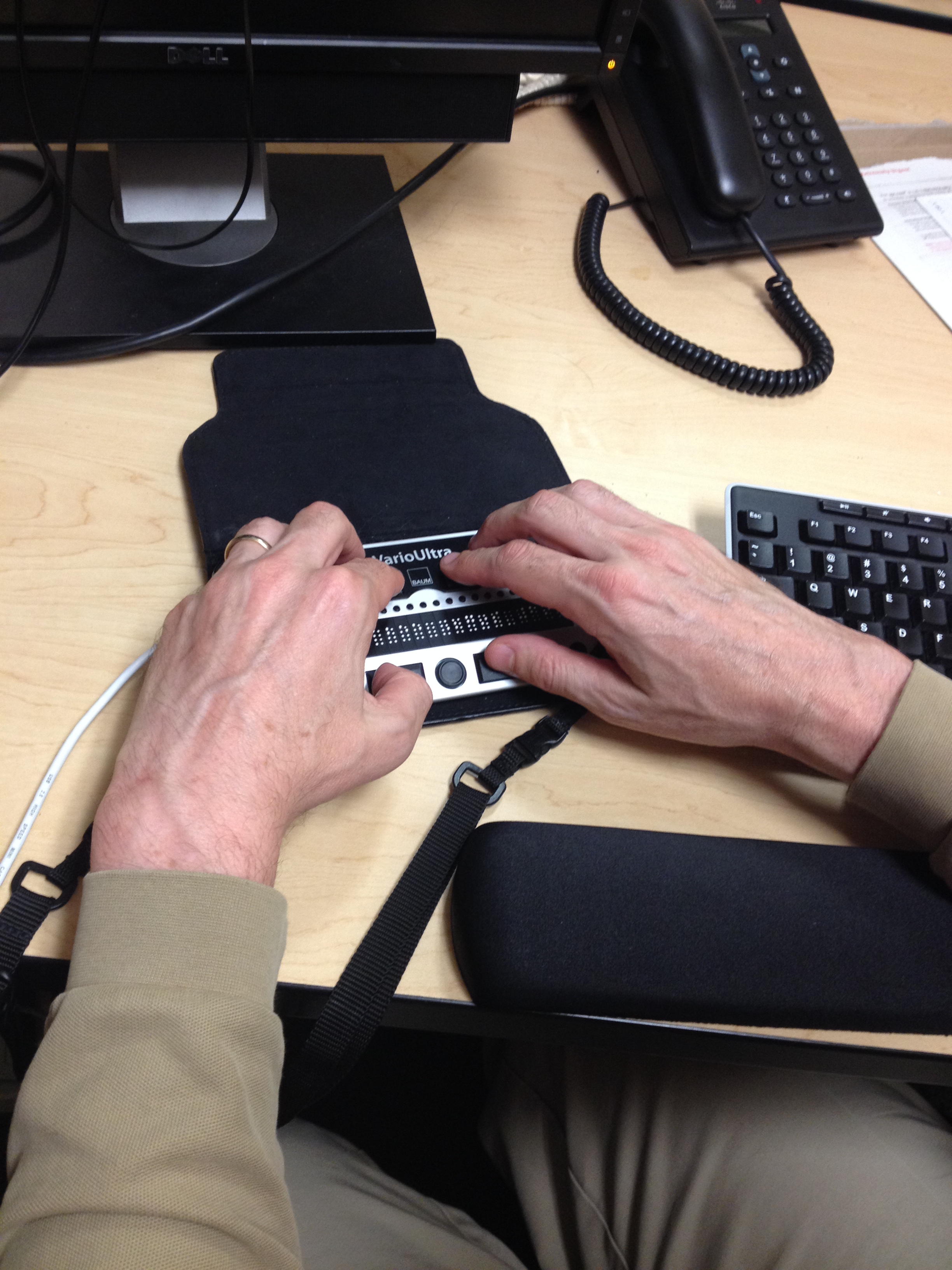
The Vario Ultra comes in 20 and 40 cell models and ours is a 20 cell. All who have seen it here at MDTAP comment about its small size. Someone suggested that when in its carrying case, it reminded her of a woman’s clutch purse. Our unit weighs only .7 pounds and its dimensions are 7.4 inches wide, 3.5 inches deep and .7 inches high. The larger 40 cell is 5 inches longer and .4 pounds heavier.
Jim McCarthy using the VarioUltra at his desk

The VarioUltra is in a group of braille displays people refer to as smart displays. All displays show braille provided to them from a computer or mobile phone. There are note takers like the BrailleNote Apex or Hims Braille Sense, both of which can include refreshable displays and offer a vast array of internal applications but also can be used as displays rendering content from another device in braille. The Vario is somewhere between these two. A key point for future borrowers of the Vario is that as a display, it offers no speech, so unlike the Braille Sense and Apex, when in notetaker mode, there will be no speech from the Vario, only Braille.

I told someone that I enjoyed using one of the small displays with a keyboard and was told that model was something like an elephant riding a bicycle, rather crowded and perhaps a bit unstable. Though the Vario keyboard is in a small space, I think it most unlikely that one would describe it that way. It has 8 braille keys, the standard 6 dots and the two used in 8-dot computer braille that can serve other functions. These are configured in 2 arks, one for the left hand and the other for the right, with the dots 3 left and dot 6 right furthest from the user. Placing one’s pointer through little fingers on the braille keys allows the thumbs to rest comfortably on the thumb keys,  which serve as a split space bar. Between the thumb keys is a round button with a raised ring around its circumference serving as a five way (left, right, up down and pressable) Baum refers to as the Navistick. A multitude of functions can be accomplished using the navistick, which is readily accessible and very efficient. The front of the Vario, that part closest to the user containing the thumb keys and navistick is at about a 45 degree angle to the top of the unit where the display and braille keys are located. To the left of the left thumb key are two keys referred to as system keys 1 and 2 – with s1 closest to the left edge of the unit and s2 closest to the left thumb key. To the right of the right thumb key is the same configuration of 2 system keys – s3 closest to the right thumb key and s4 closest to the right edge of the unit. On the left side, braille display keys 1, 2, and 3 run vertically with display key 1 at the back of the Vario. Along the right edge of the unit are keys 4, 5 and 6 with display key 4 at the back with the 6 keys having the configuration of a very spread out braille cell.

One of the features making the Vario Ultra unique among displays is the number of devices to which it can connect. The display connects to a USB device and 4 additional Bluetooth devices. Using the system key 2 and one other key each for USB and the 4 Bluetooth connections an ultra user quickly moves among connected devices.

I only have an iPhone connected by Bluetooth now but have moved through the 5 channels, an easy task. I would have expected that if when I paired my phone to the ultra for the first time, the pairing occurred on channel 4, my phone would always appear on channel 4 but that is not the case. When one turns off the ultra or it goes into its standby mode to conserve battery, the Bluetooth connection is terminated. Taking it out of standby or turning it back on does not reinstitute Bluetooth when in braille display mode but instead shows the USB on the display. The user must chose a Bluetooth channel and that turns Bluetooth on, an action that happens quickly and effortlessly once triggered. With Bluetooth on, a paired device like an iPhone indicates which of the 4 channels the connection will take place. With that information, the user can hit the system 2 key in conjunction with braille dot 4, 5, 6, or 7 for Bluetooth channels 1-4 easily making the connection.

The Ultra also switches easily from display mode to note taker mode. This is accomplished by the slide of a switch on the left edge of the Ultra. In notetaker mode, the Ultra acts as many of the note takers we know and love with the greatest difference being that there is no speech. A user can write in braille mode or in rich text format in its word processor. The user can read the latest Microsoft Word files but cannot edit these. There is also a PDF reader so PDF files that are not image based can be read using the Ultra. It has a calculator that includes scientific functions in addition to the usual calculator functions and memories. There are several timers and alarms including count down timer, stop watch and wake up alarms. Programs not included in the Ultra are an email program, web access and built in access to NLS BARD and to Bookshare. There is also no media player or radio. For me the absence of these does not weigh against my interest in the device. Especially because it costs significantly less than note takers with these features. In my opinion, these features often do not work well in the note takers or are readily available in other devices.

Experienced users of note takers are familiar with chording commands – a press of the space bar in conjunction with one or more braille keys to initiate a command. The ultra has thumb keys something like a split space bar. Thumb key 9, the left most of these is the primary key used to initiate commands with key 0, the right most of these being a space bar in note taker mode. Some commands require both thumb keys 9 and 0 with some combination of keys 1, 2, 3, 4, 5, 6, 7, and or 8. In my brief experience, there are some challenging commands that required several fingers to implement. Baum asserts that there is a shortcut for every single command in the note taker mode

The VarioUltra has a braille display mode. In this mode, the unit provides the information for the computer device to which it is connected. There are drivers in order that users can connect to JAWS on a computer if later versions of JAWS are available. JAWS connections can be done by USB or Bluetooth depending on what the user prefers or needs. I have not connected this ultra with JAWS yet so I really can’t say more. Users of MVDA and WindowEyes can also use VarioUltra.

Among those who are braille readers and writers who want to pair a display with an iOS or Android device to enhance portability, the VarioUltra has been highly anticipated. Here at MDTAP, we are glad to have ours and encourage you to borrow it and run it through its paces. I think you will be glad you did.


ARIA Application Role

ARIA role=”application” can be used to identify web applications or widgets within a page. When a screen reader is within an element with this role, it functions in forms mode, meaning that when keyboard keys are pressed, they are passed to the web page rather than handled by the screen reader itself. This, however, can be confusing for the user if they are unaware that they are within an application. For example, a screen reader user may press the “H” key expecting to navigate to the next heading, but within an application, this functionality would not occur. Instead, the “H” key press would be passed to the application where it could trigger a “Help” dialog. Because of this potential confusion, role=”application” should generally only be used on web applications that are handling keyboard events. When possible, inform the user that the application will be controlling keyboard interaction and provide a listing of the shortcut keys and their functions.

Stands I Have Known—Revisited

Contributed by Joel Zimba, Special Projects Coordinator, MDTAP

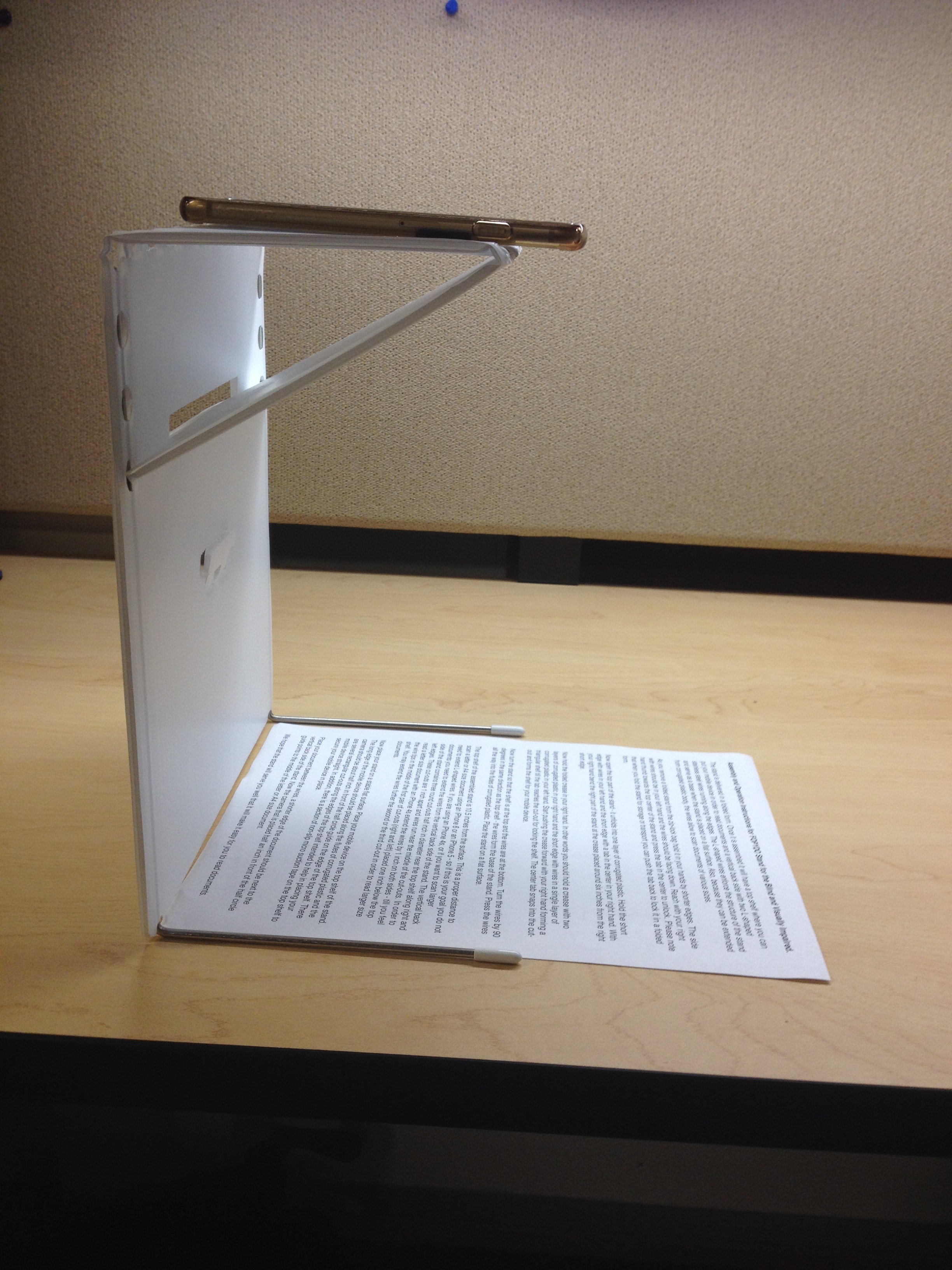
As hinted in the last post, I finally got my hands on the Fopydo stand. It set me back a whole $15 direct from the manufacturer. There may be less expensive stands available, but let’s call this the low end of the scanning market.

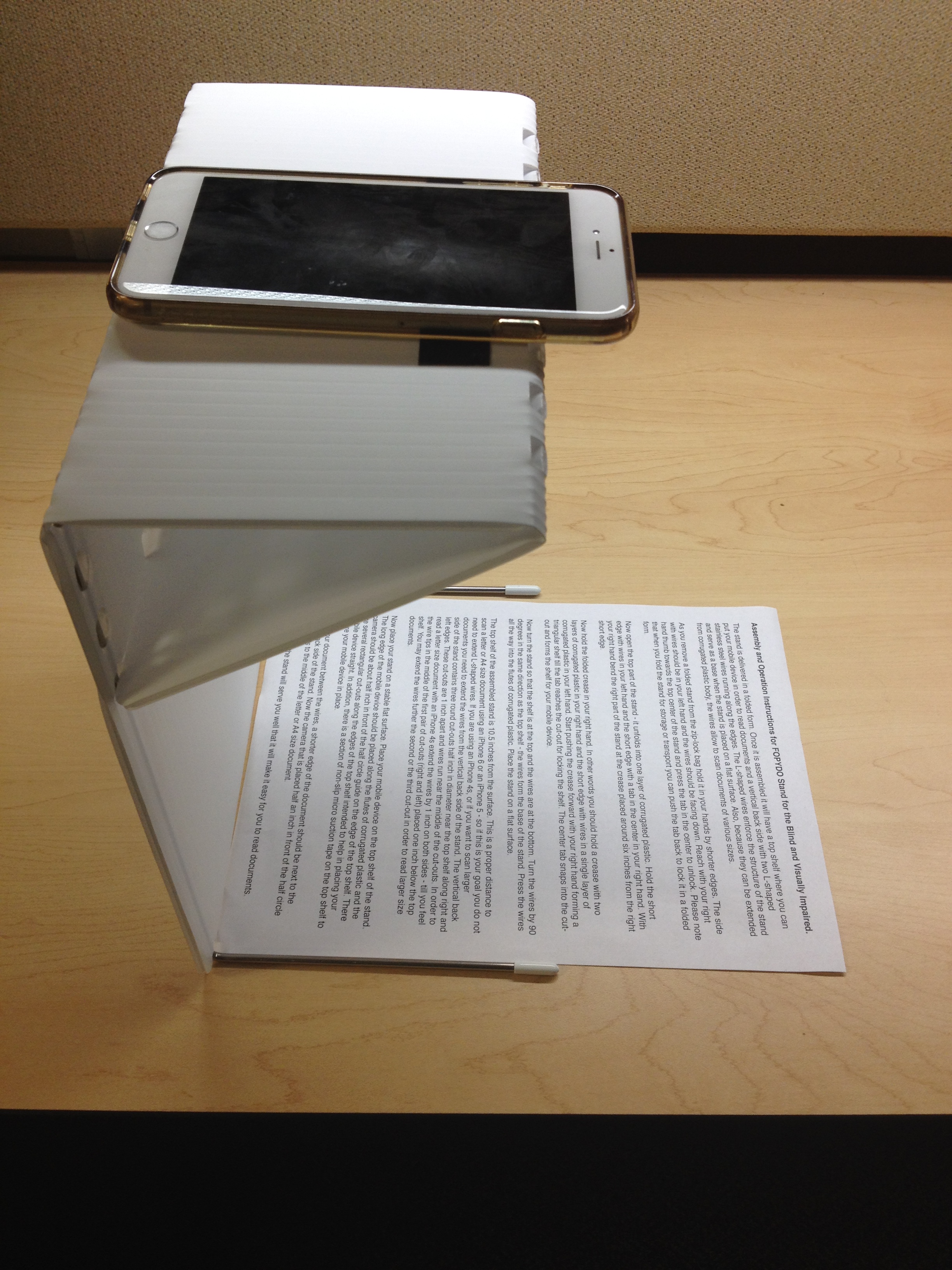
Fopydo with a cell phone sitting on the top and a piece of paper below

Fopydo as seen from the side

Fopydo (it stands for photo copy documents)  actually makes two kinds of stands. The one I bought specifically states it is made for users of the KNFB Mobile software. I believe the other stand comes with bundled software, though I have no idea if there are other differences. It costs just slightly more, so feel free to try your luck.

The stand comes folded flat in a cardboard mailing envelope. Assembly, if you can call it that consists of folding the foam core body of the stand according to the directions and inserting tab A into slot B. Saying this takes 30 seconds would give you time to take a swig of coffee mid-way through. When ready for action, the stand sits on two metal bracket legs and suspends a platform over a flat surface, such as a table top.  This platform is supported by folding a bit of the foam core back in at about 45 degrees to meet with the long surface of the Fopydo.  An awkward description of a simple structure.

I placed my iPhone 6+ on the top surface and laid a printed page between the two metal legs.  It scanned perfectly. Instead of lining up the camera lense with a hole in the stand, the business end of the device just peaks out over the edge of the stand. Keeping things squared up is probably unimportant. It might be slightly harder with a smaller device, but I just lined up the hindquarters of my phone with the back edge of the Fopydo’s top.

The Fopydo stand with an idevice on the top and a piece of paper below

Fopydo as seen from above

The Fopydo has a much smaller footprint than the ScanJig discussed last week.  It is also a fraction of the weight. While it seems sturdy enough when assembled, I doubt it would support an iPad quite as well as the smaller iOS devices.  Also, folding and unfolding the Fopydo will likely only happen a finite number of times; remember, the slots and tabs are just cuts in standard foam core.  For now, it will live on my desk so I can scan at will. So, ease-of-use, price and size are great. Durability maybe not so much, but good enough for jazz.


« Newer Posts - Older Posts »

MDTAP | 2301 Argonne Drive, Room T17 Baltimore, Maryland 21218| Voice: 410-554-9230 Toll Free ⁄ Voice 1-800-832-4827|Email: mdtap@mdtap.org